How to Install iViewHD App on Android TV / Box
Download link:
iViewHD App for Android TV / TV Box / Firestick: https://www.topiptvguide.com/ivstb.apk
iViewHD App for Android Phone: https://www.topiptvguide.com/ivpad.apk
iViewHD Plus App for Android TV / TV Box / Firestick: https://www.topiptvguide.com/ivpstb.apk
iViewHD Plus App for Android Phone: https://www.topiptvguide.com/ivppad.apk
Sub Device App for Android TV / TV Box / Firestick: https://www.topiptvguide.com/substb.apk
Sub Device App for Android Phone: https://www.topiptvguide.com/subpad.apk
How to Install and Activate
To install the iViewHD app on your Android TV box, follow these steps:
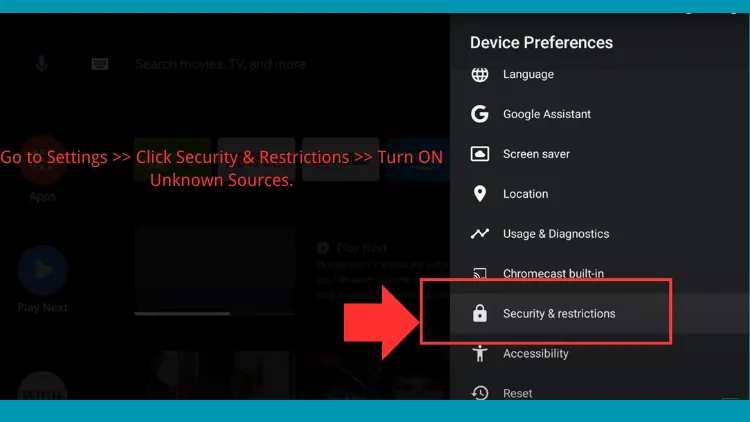
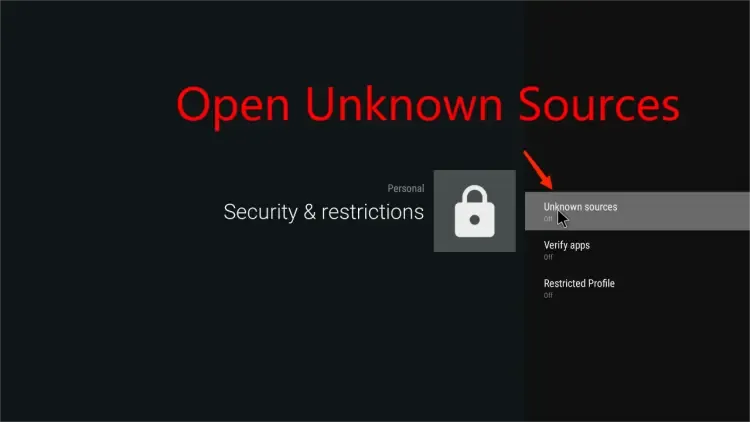
- Enable Unknown Sources:
- Go to Settings on your Android TV box.
- Navigate to Security & Restrictions.

- Turn on Unknown Sources to allow installation of apps from sources other than the Google Play Store.
- Download the iViewHD APK:
- Open a web browser on your Android TV box.
- Enter the download link for the iViewHD Apk.
- Download the iViewHD APK file.
- Install the APK:
- Once the APK file is downloaded, locate the file using a File Manager app.
- Click on the APK file to start the installation process.
- Follow the on-screen instructions to install the app.
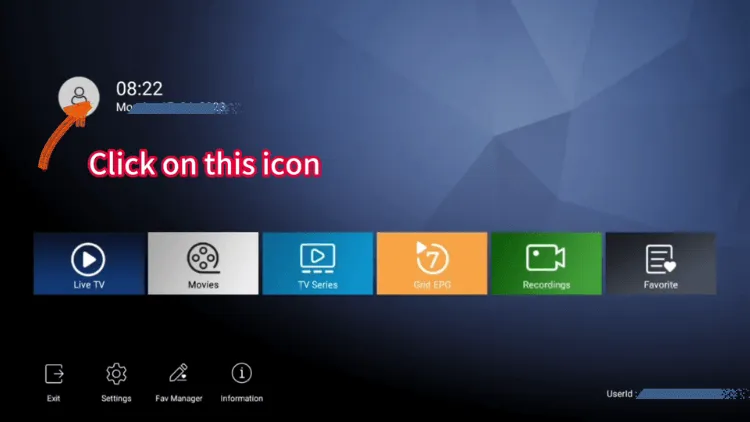
- Launch iViewHD App:
- After installation, go to the Apps section on your Android TV box.
- Find and open the iViewHD app.
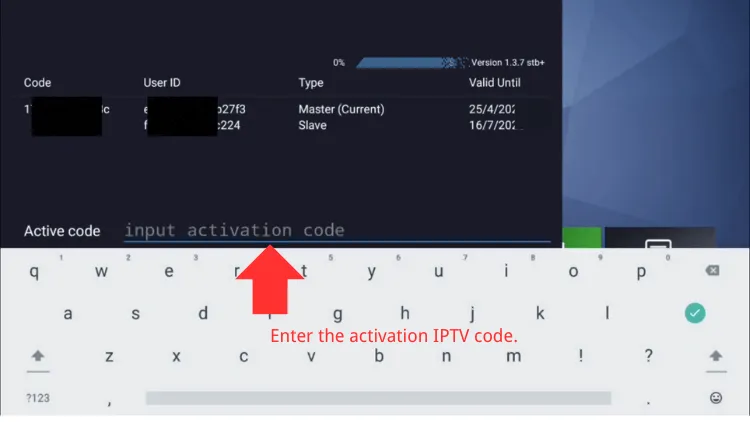
- Enter your IPTV code and complete activation.
Now you can enjoy the iViewHD IPTV service on your Android TV box.