How to use the recording function?
As a professional IPTV user, record your favorite shows and movies with the Plus version to make sure you never miss an episode. The Plus version allows you to capture and save up to 7 days of live shows or past shows, providing convenience and flexibility for your entertainment experience. Here’s how to record and delete a show on the Plus version.
What is IPTV Recording on Plus version?
Plus version is a premium IPTV service offering over 280 high-quality channels with a 7-day Catch-Up feature. With IPTV Recording, you can:
- Record current live programs.
- Record any program that aired in the past 7 days.
- Save recordings on the IPTV server using cloud technology, ensuring no device storage is used.
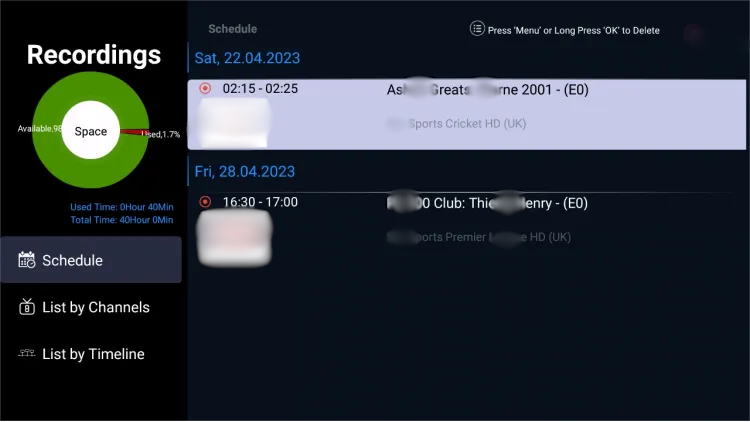
Each user can record up to 20 files, totaling approximately 40 hours of content.
How to Enable IPTV Recording on Plus version
The process is the same across various devices, including Android boxes, Firesticks, and Nvidia Shields. Follow these steps:
- Open the Plus version App:
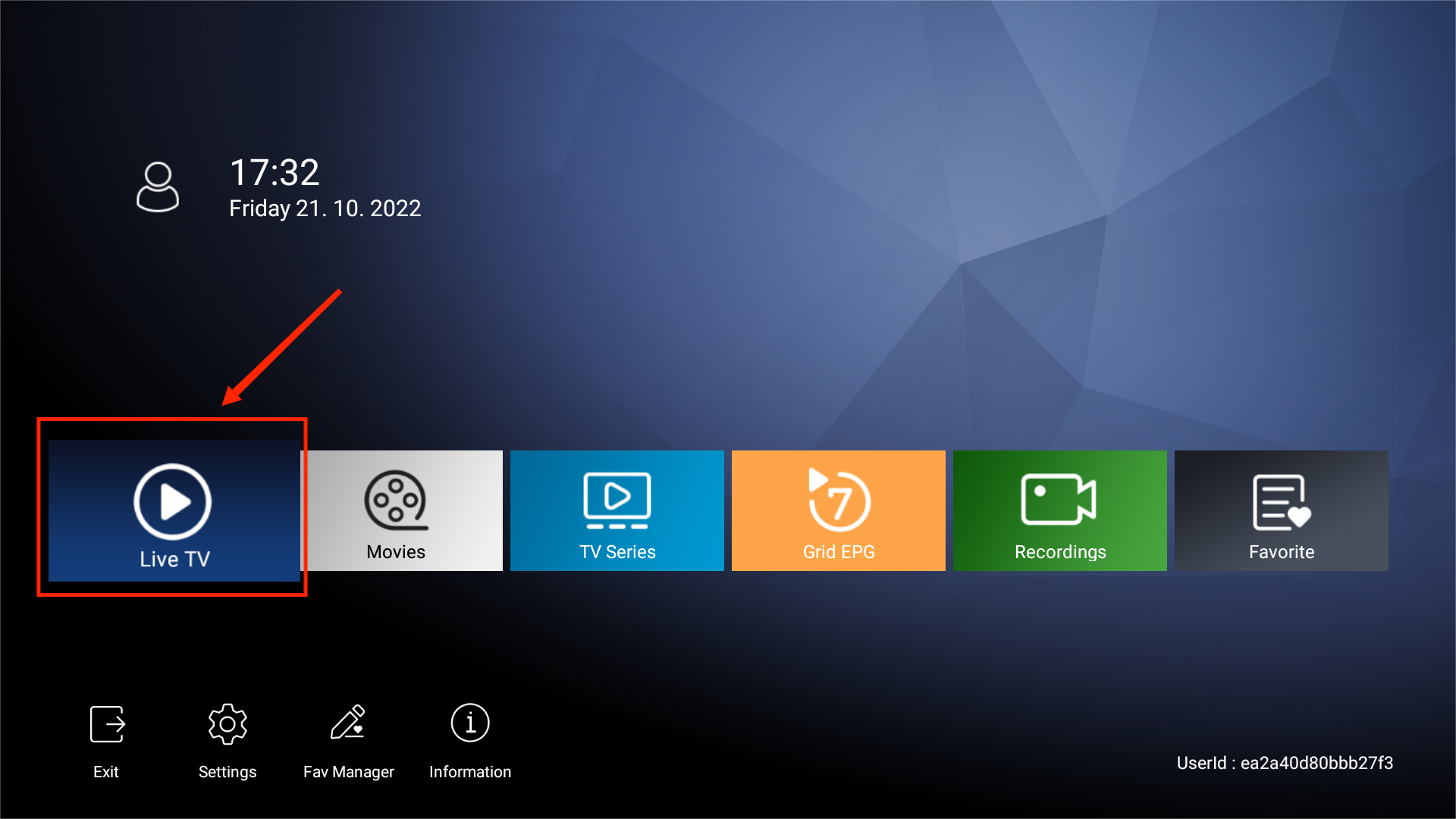
- Navigate to the Live TV section.

- Navigate to the Live TV section.
- Select the Channel:
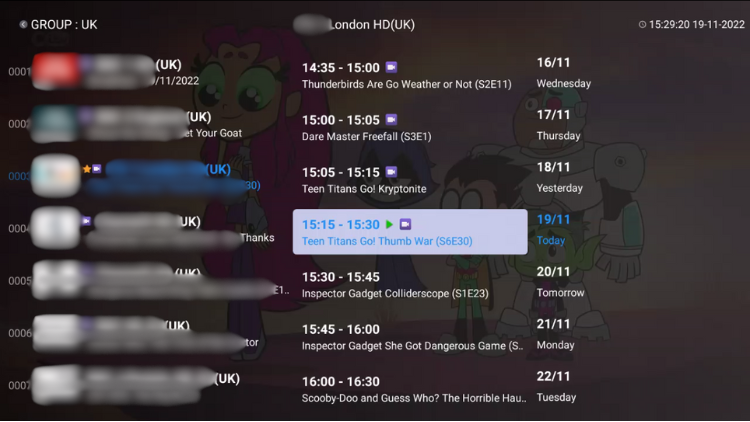
- Find the channel you want to record, ensuring it has a recording icon.
- Find the channel you want to record, ensuring it has a recording icon.
- Start Recording:
- Long-press the OK button on your remote to bring up the function menu.
- Select Record to start recording the current program.
- Record a Future Program:
- Press the OK button and select the channel list option.
- Navigate to the desired date and time in the EPG and select the program.
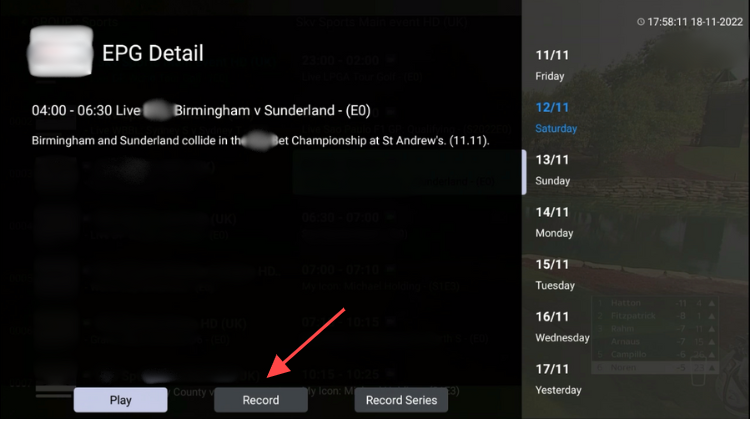
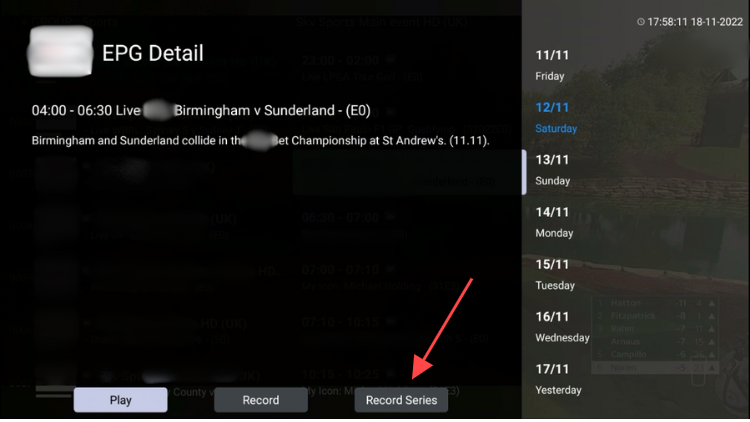
- Choose Record from the EPG details page.
- Record a Series:
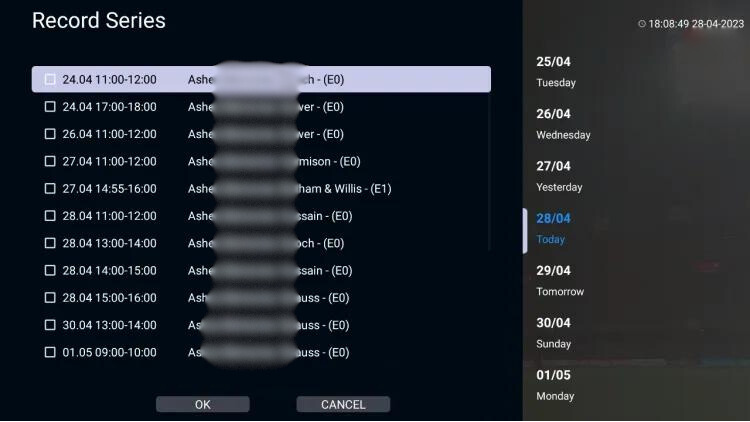
- Select Record Series from the EPG details page to record a program.
- Select Record Series from the EPG details page to record a program.
- Check Recording Status:
- A red icon will appear in the top right corner of the screen indicating that the recording is in progress.
- View Recordings:
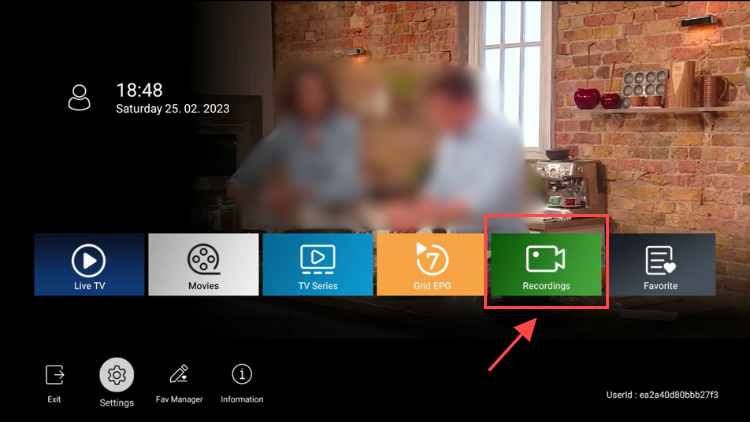
- Go back to the Plus version app home screen and select the Recording section.
- Go back to the Plus version app home screen and select the Recording section.
How to Delete a Recording
- Access Your Recordings:
- Navigate to the Recording section of the Plus version app.
- Select the Program:
- Find the program you want to delete from the recording list.
- Delete the Recording:
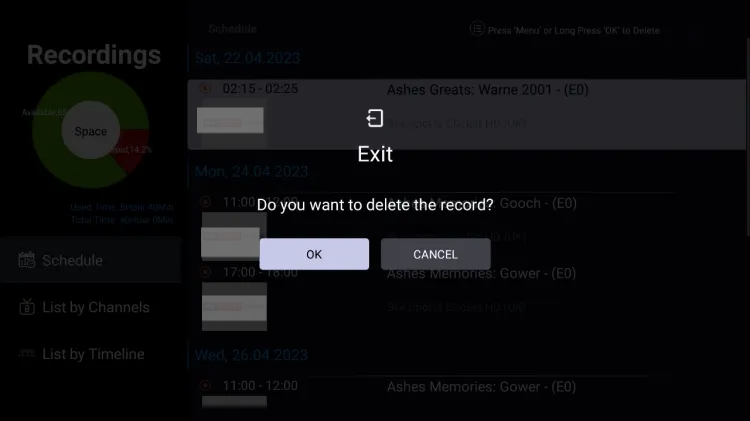
- Long-press the OK button on your remote control and confirm the deletion.
- Long-press the OK button on your remote control and confirm the deletion.