How to switch EPG format?
As a professional IPTV user, the App offers a comprehensive channel guide (EPG) to help you navigate through the exciting live and upcoming shows on your subscribed channels. Here’s how to make the most out of the TV Guide (EPG) in the App.
Using the EPG
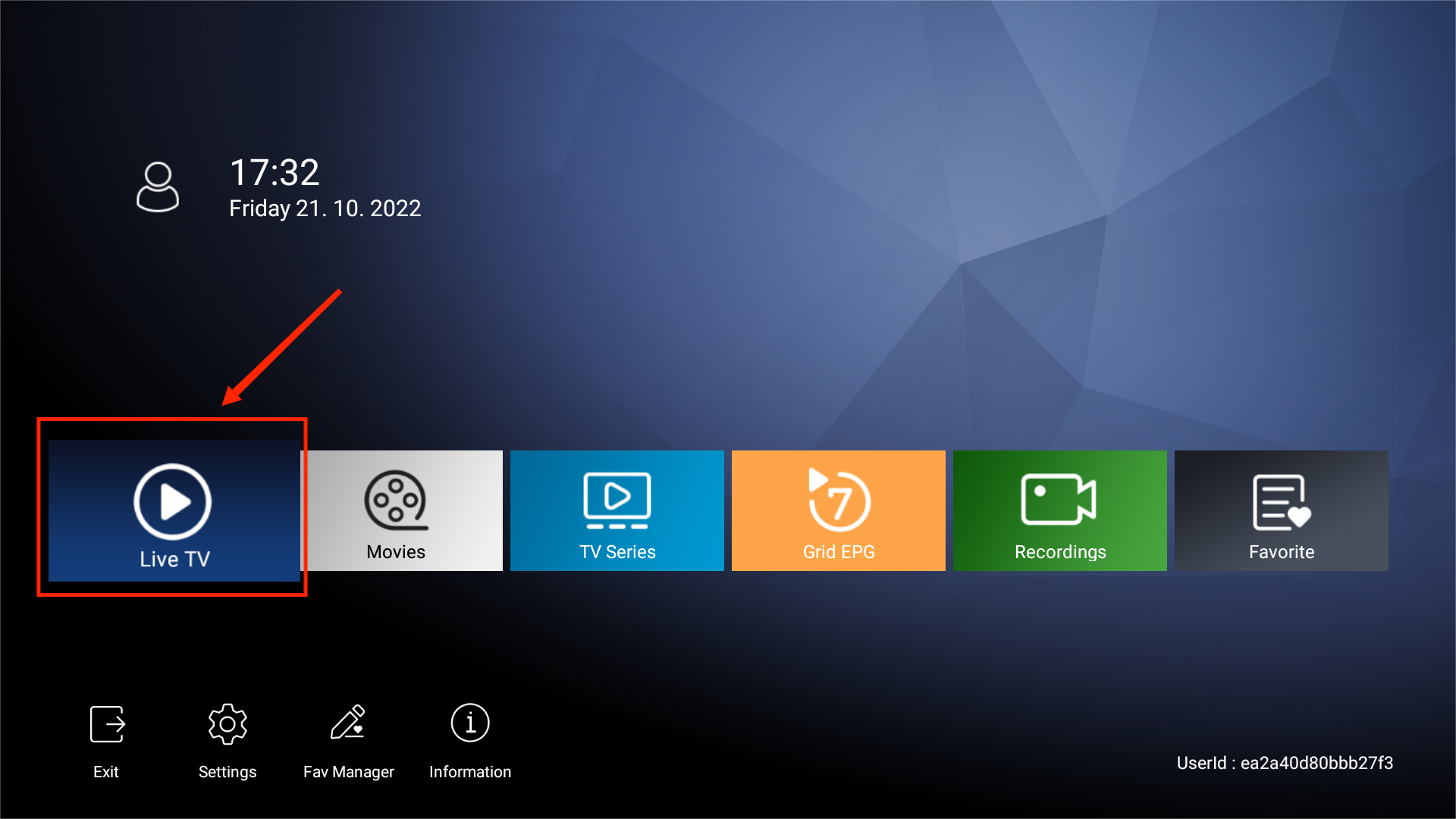
- Access Live TV:
- From the main menu of the App, select Live TV.

- From the main menu of the App, select Live TV.
- View Channel List:
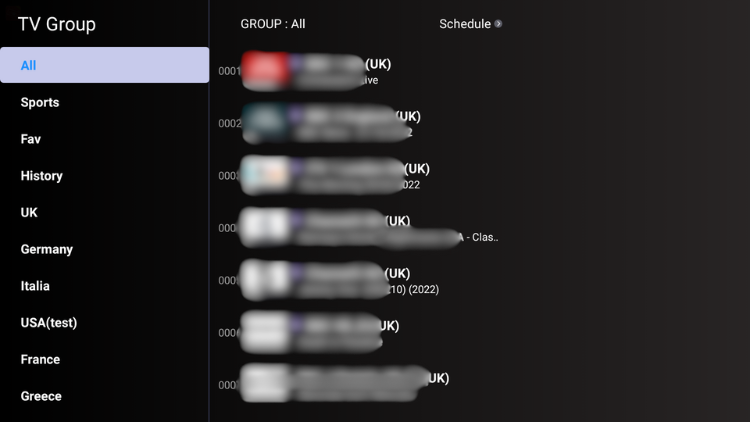
- Press the OK button on your remote to bring up the channel list.
- You will see the current live guide for each channel.
- Press the OK button on your remote to bring up the channel list.
- Explore Program Guide:
- Scroll to your favorite channel.
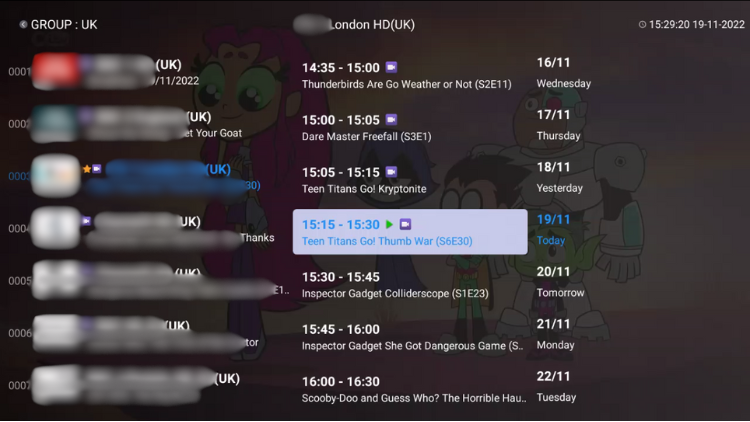
- Press the right button on your remote to display the full Schedule, including all time slots for the current day and the upcoming seven days.
- Select a date up to a week in advance to view upcoming events and shows.
Switching EPG Formats
If you prefer a different EPG format, provides three options: Grid EPG, Classic EPG, and the default EPG. Here’s how to switch between them:
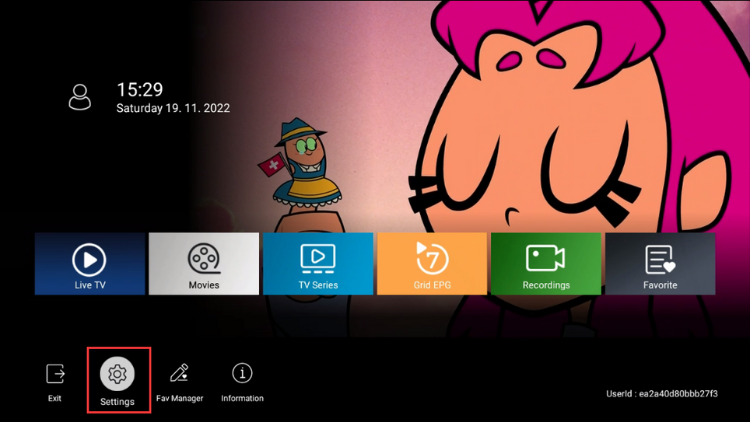
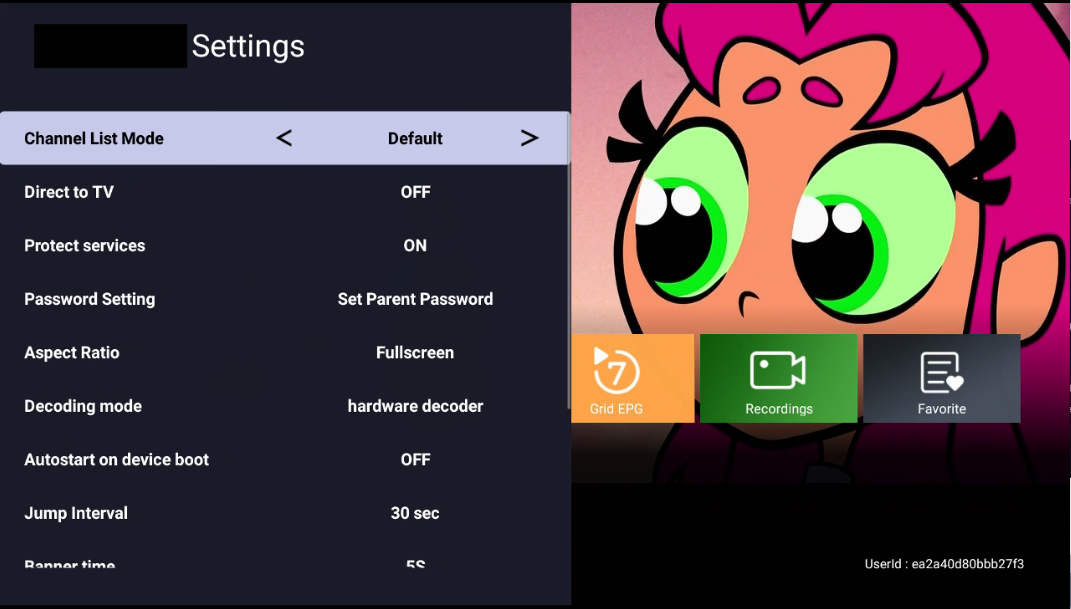
- Open Settings:
- From the main menu of the App, select Settings.
- From the main menu of the App, select Settings.
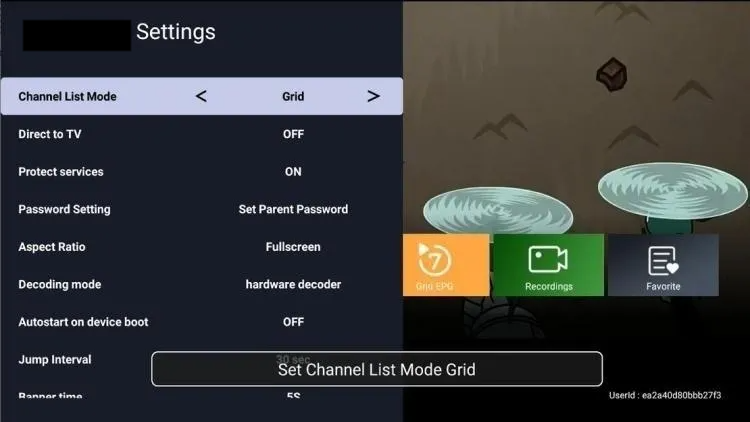
- Change EPG Format:
- Use the left or right buttons on your remote to navigate to the Channel List Mode.
- Select your preferred EPG format (Grid, Classic, or Default).
- Wait for two seconds for the EPG format to automatically switch.
- Use the left or right buttons on your remote to navigate to the Channel List Mode.
- Return to Live TV:
- Go back to Live TV and press the OK button.
- Your chosen EPG format will now be displayed.Grid EPGClassical EPG
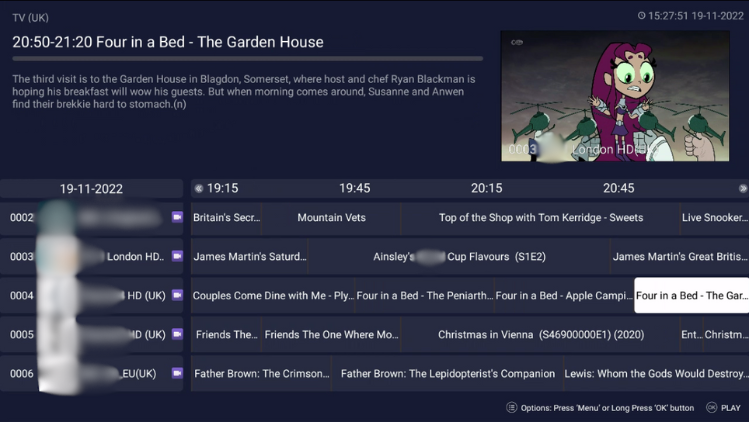 Grid EPG
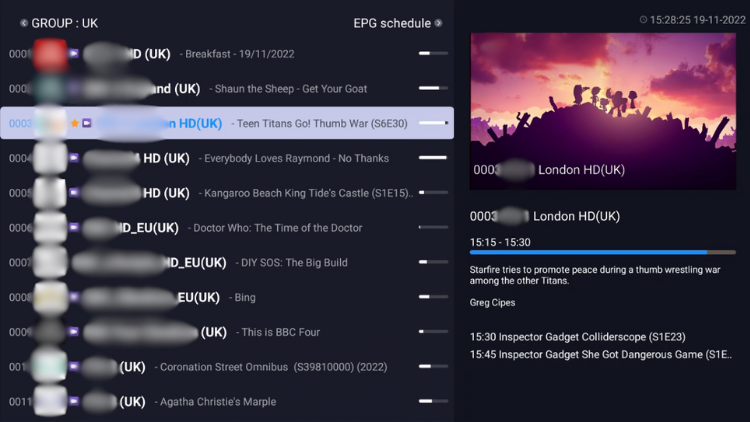 Classical EPG
Why does my IPTV subscription not have a Grid EPG?
Different IPTV subscription packages and device types may offer varying EPG functionalities. Here’s a quick reference table:
| Device Type | Grid EPG | Classic EPG | Default EPG |
|---|---|---|---|
| Standard App (STB Version) | × | √ | √ |
| Standard App (PAD Version) | × | × | √ |
| Plus App (STB Version) | √ | √ | √ |
| Plus App (PAD Version) | × | × | √ |
| Sub-Device App (STB Version) | √ | √ | √ |
| Sub-Device App (PAD Version) | × | × | √ |