How to Install iView HD App on Firestick?
Download link:
iViewHD App for Android TV / TV Box / Firestick: https://www.topiptvguide.com/ivstb.apk
iViewHD App for Android Phone: https://www.topiptvguide.com/ivpad.apk
iViewHD Plus App for Android TV / TV Box / Firestick: https://www.topiptvguide.com/ivpstb.apk
iViewHD Plus App for Android Phone: https://www.topiptvguide.com/ivppad.apk
Sub Device App for Android TV / TV Box / Firestick: https://www.topiptvguide.com/substb.apk
Sub Device App for Android Phone: https://www.topiptvguide.com/subpad.apk
How to Install and Activate
To install the iView HD app on your Firestick, follow these steps:
- Enable Apps from Unknown Sources:
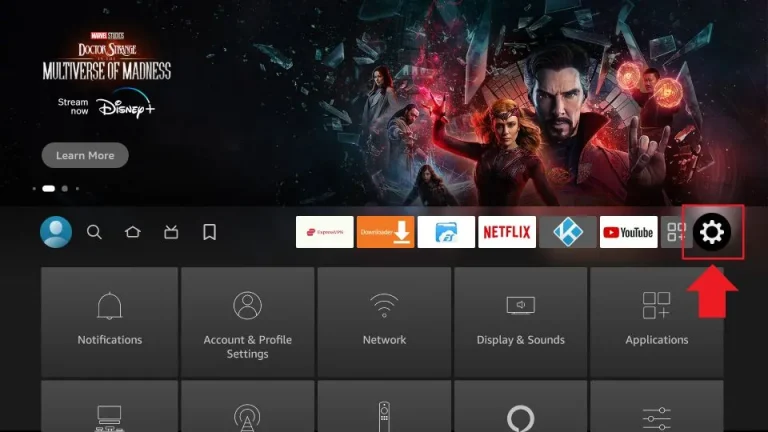
- From the Firestick home screen, go to Settings.

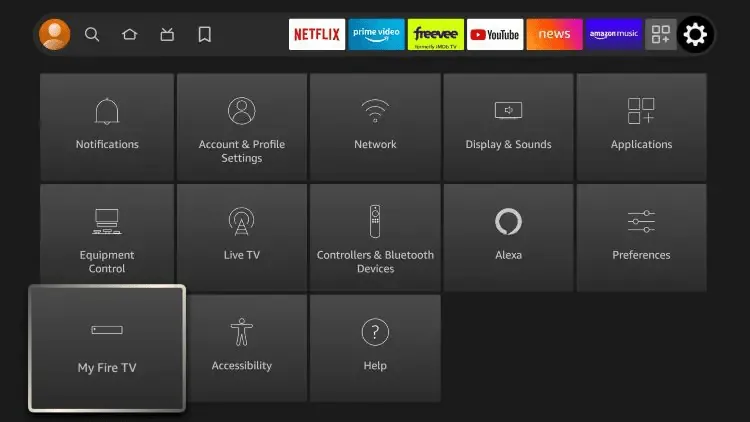
- Select My Fire TV.
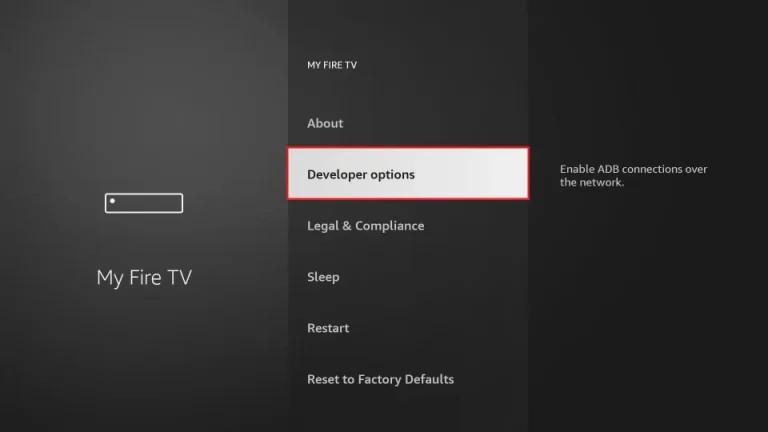
- Choose Developer Options.
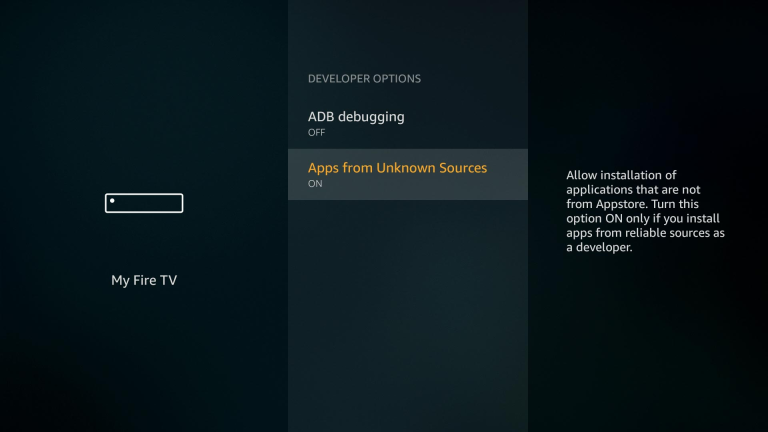
- Turn on Apps from Unknown Sources.
- Confirm the warning message by selecting Turn On.
- From the Firestick home screen, go to Settings.
- Install Downloader App:
- Go back to the Firestick home screen.
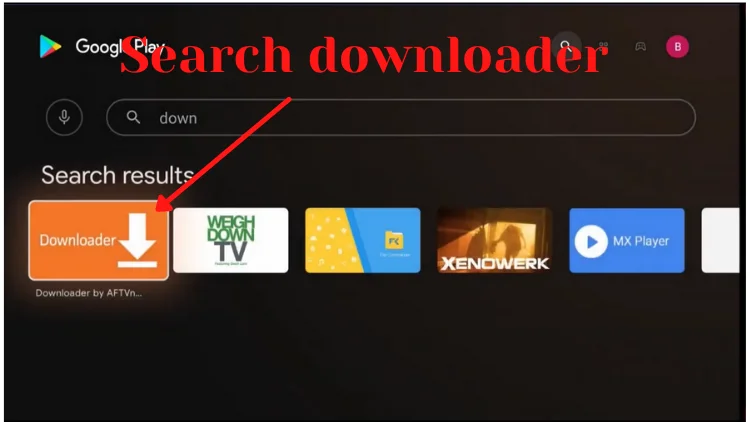
- Select the Search icon (magnifying glass) and type Downloader.
- Select the Downloader app from the search results and install it.
- Download the iView HD APK:
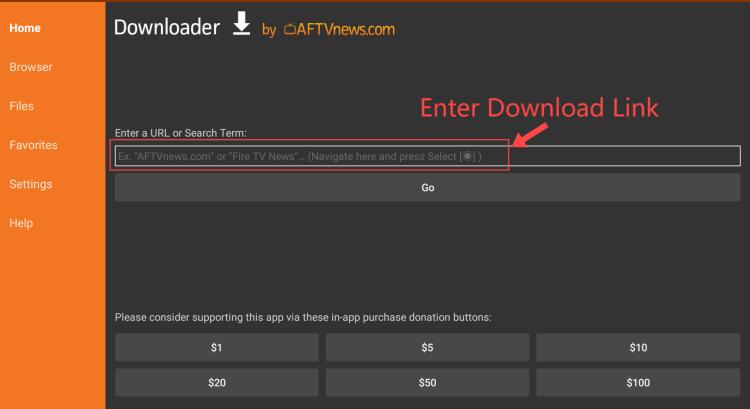
- Open the Downloader app.
- In the URL field, enter the download link for the iView HD APK.
- Click Go to download the APK file.
- Install the iView HD APK:
- Once the APK file is downloaded, the Downloader app will automatically prompt you to install it.
- Select Install.
- After the installation is complete, select Done.
- You can delete the APK file to free up space by selecting Delete in the Downloader app, then confirm by selecting Delete again.
- Launch iView HD:
- Go back to the Firestick home screen.
- Navigate to Your Apps & Channels.
- Please scroll down to find the iView HD app and launch it.
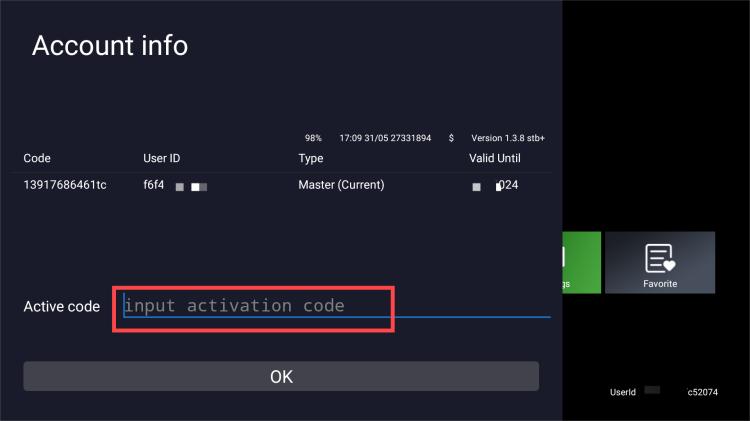
- Enter your IPTV code and complete activation.
Now you can enjoy iView HD on your Firestick.