How to Add Favorite Channels?
As a professional IPTV user, managing your favorite channels efficiently can enhance your viewing experience. The App offers a powerful Favorites Channel Manager, allowing you to easily customize your channel lineup. Here’s a step-by-step guide on how to use this feature.
Adding Channels to Your Favorites
- Access Live TV:
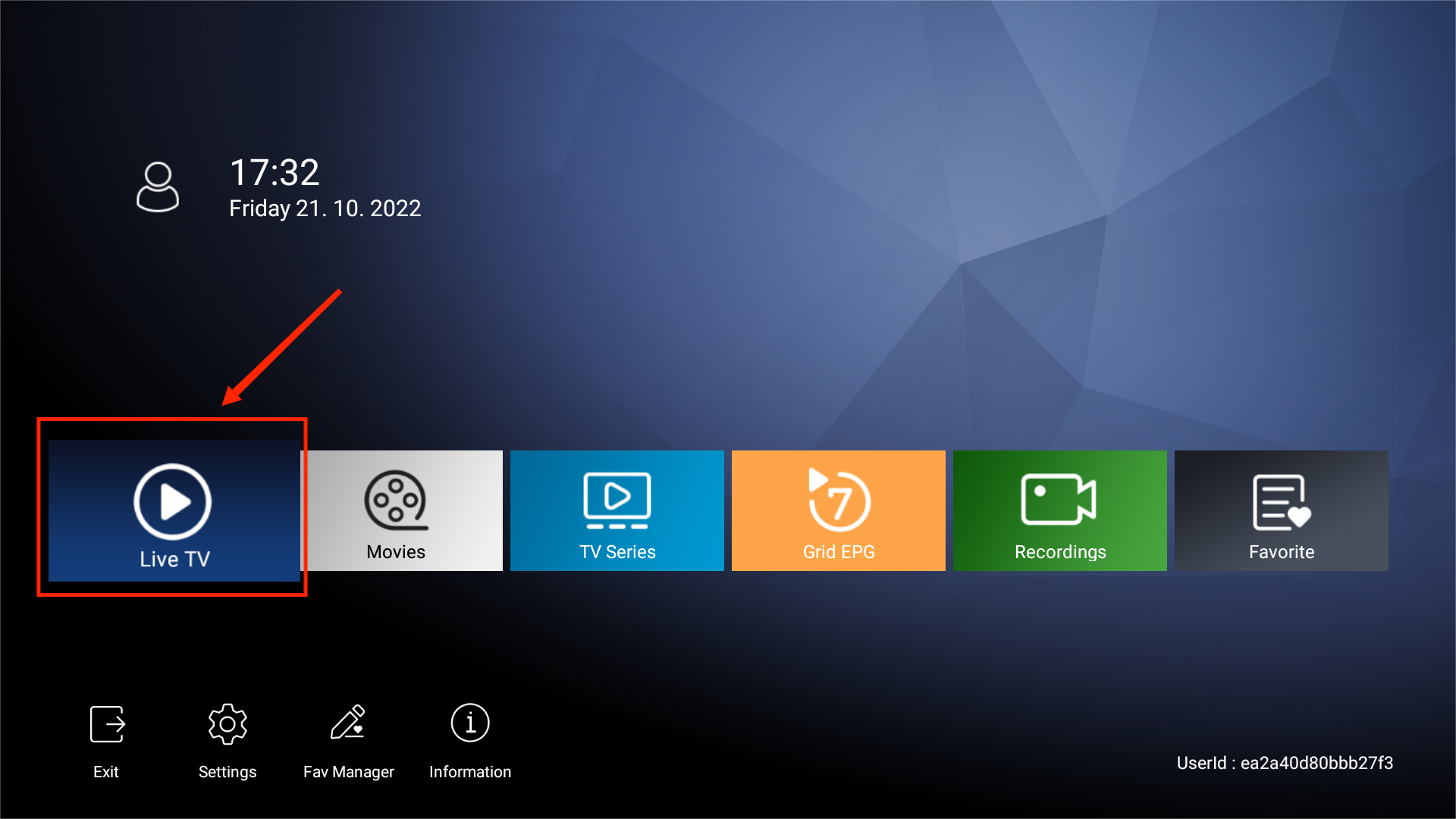
- Open the App and navigate to the Live TV section.

- Use your remote control to highlight the channel information by pressing the OK button.
- Open the App and navigate to the Live TV section.
- Select Your Favorite Channel:
- Scroll through the channels to find your desired one.
- Press the OK button again to highlight it.
- Add to Favorites:
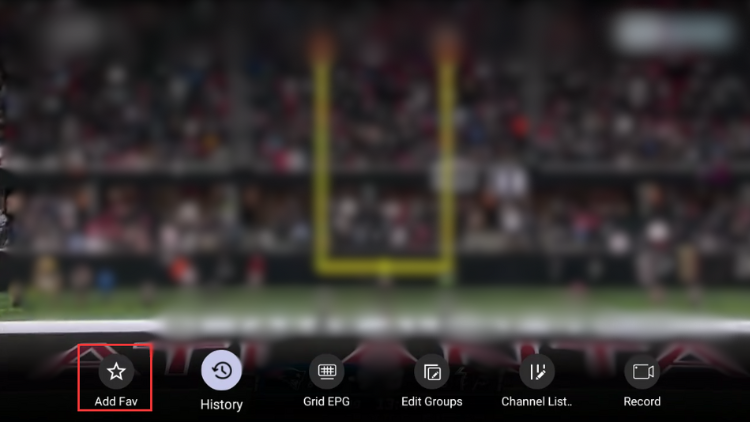
- Long press the OK button while the channel is playing to bring up the information bar.
- Navigate to the star-shaped icon and press OK to add the channel to your favorites list.
- Long press the OK button while the channel is playing to bring up the information bar.
- View Your Favorites:
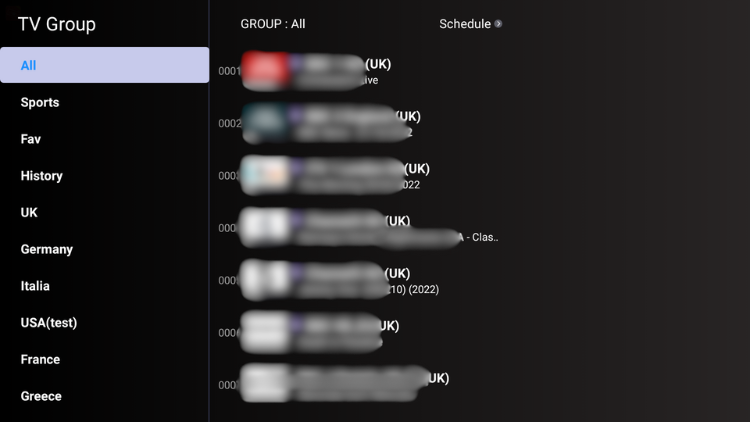
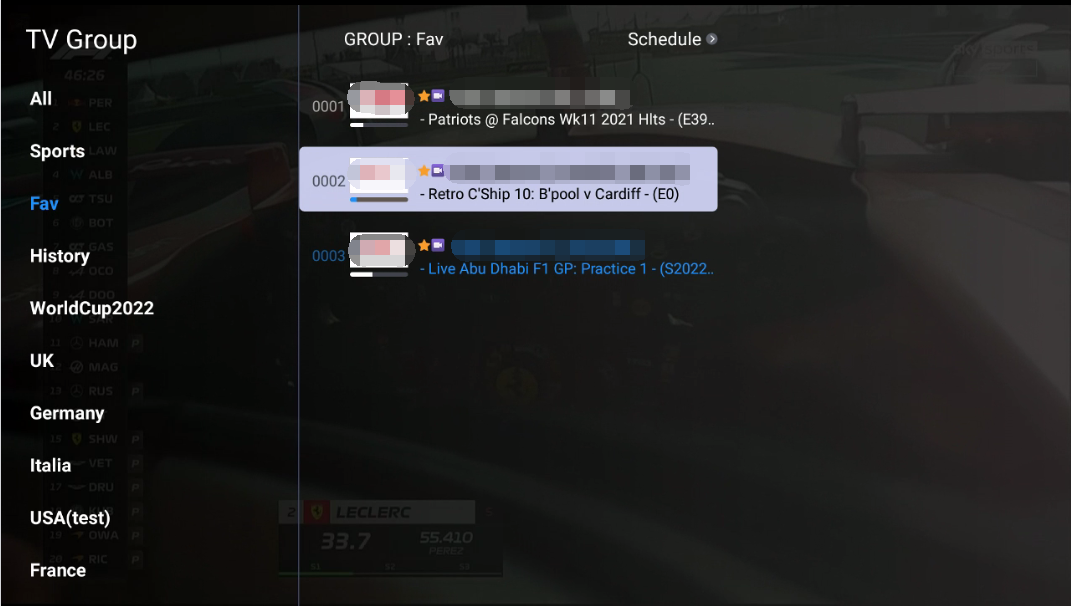
- Access the channel list on the left and select Favorites.
- The channel you added will now appear in this list.
- Note: You can quickly access your favorites from the FAV list on the main interface of the App.
- Access the channel list on the left and select Favorites.
Removing Channels from Your Favorites
- Access the Favorites List:
- Play the channel you wish to remove from the favorites list.
- Remove from Favorites:
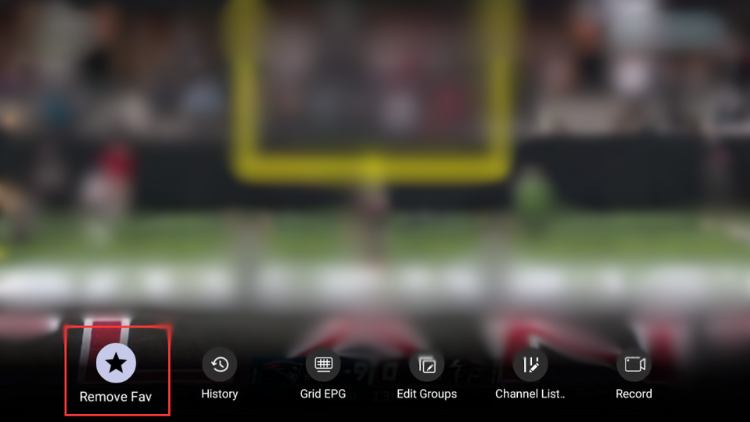
- Long press the OK button to bring up the information bar.
- Select the star-shaped icon and press OK to remove the channel from the favorites list.
- Confirm Removal:
- Check the favorites list again to ensure the channel has been removed.
Creating a Custom Favorite Channel List
- Open Favorites Manager:
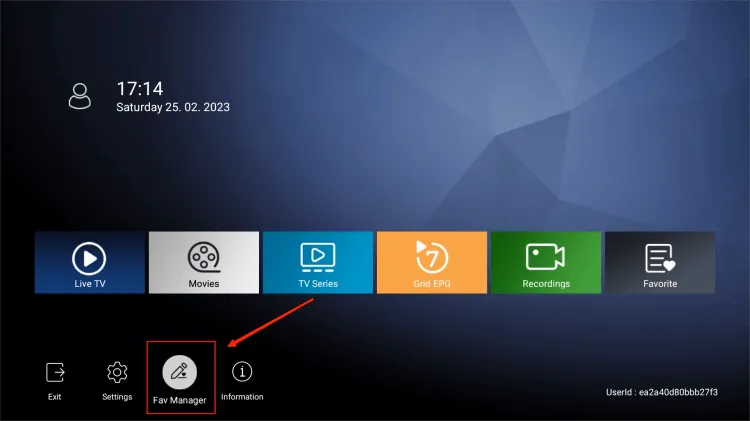
- On the app’s home screen, select the Fav Manager option at the bottom.
- On the app’s home screen, select the Fav Manager option at the bottom.
- Create a New Group:
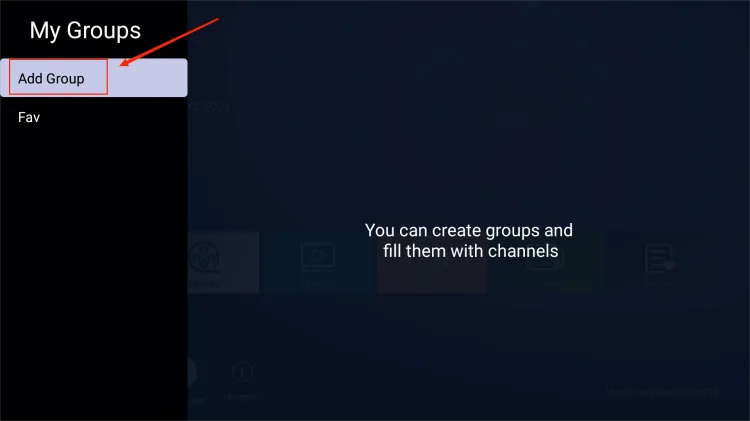
- Click on Add Group.
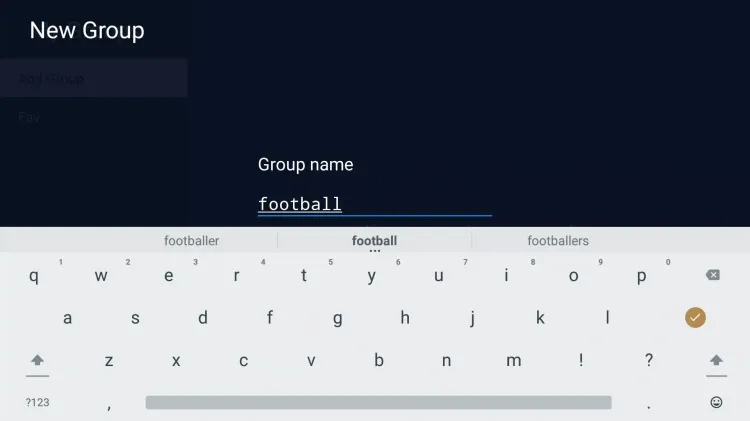
- Name your new favorite channel list.
- Click on Add Group.
- Add Channels to Your List:
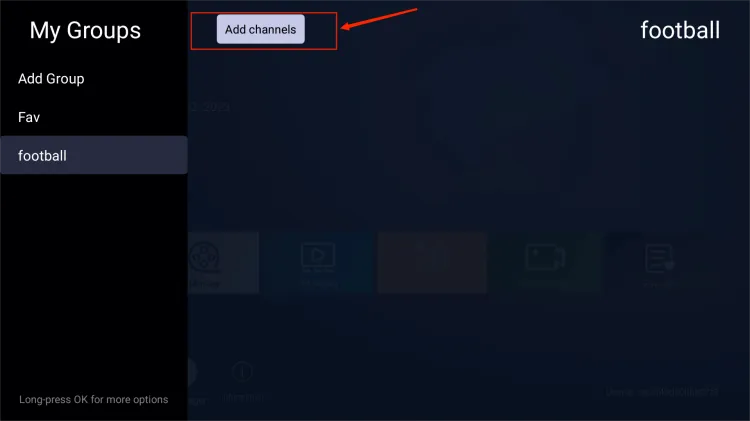
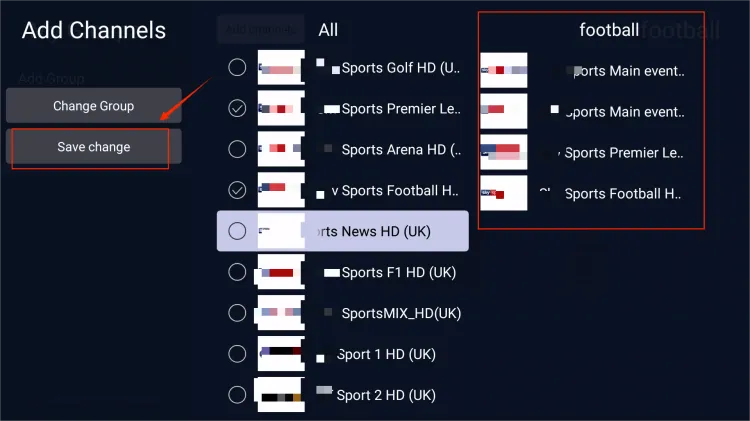
- Click on Add Channels.
- Customize your list by adding channels according to your viewing preferences.
- Save your changes by selecting Save Change on the left sidebar.
- Click on Add Channels.
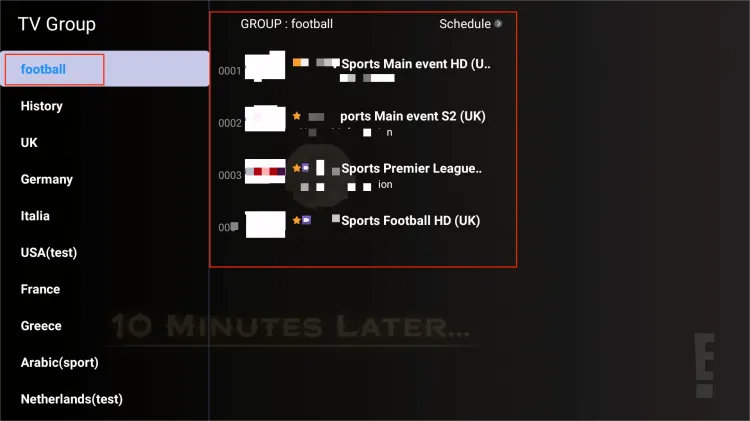
- View Your Custom List:
- Return to the Live TV section to see your newly created categories and channels in the left-hand channel list.
- Return to the Live TV section to see your newly created categories and channels in the left-hand channel list.
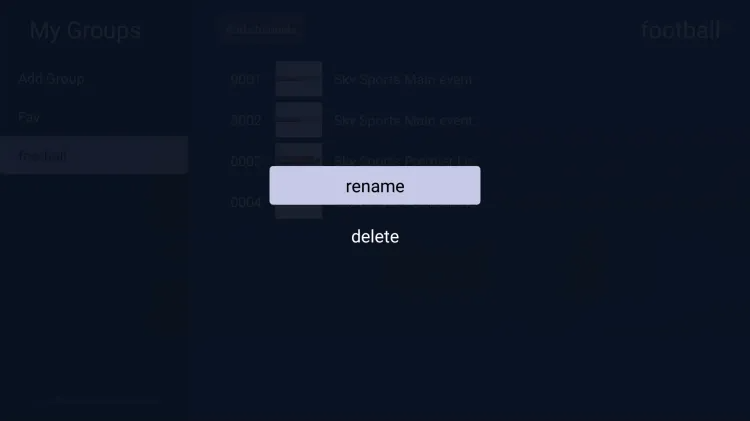
- Manage Your List:
- To delete or rename a custom list, go back to Fav Manager.
- Long press on the list and choose your desired option from the available choices.
Adding Movies or TV Series to Favorites
- Access Movies or TV Series:
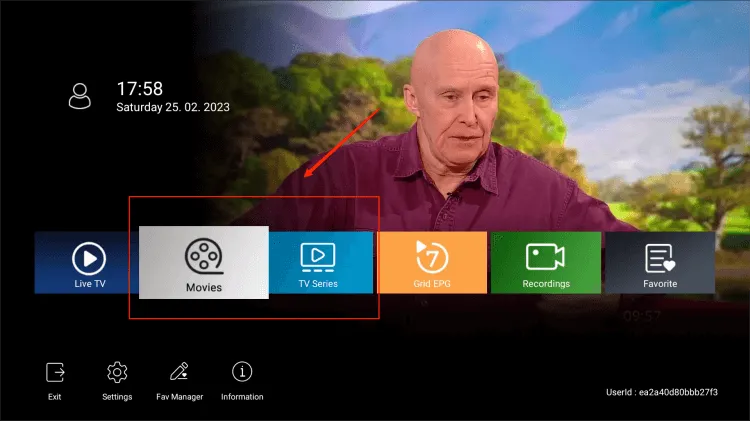
- From the main menu, select Movies or TV Series.
- From the main menu, select Movies or TV Series.
- Select Content:
- Choose the movie or TV series you want to add to your favorites.
- Add to Favorites:
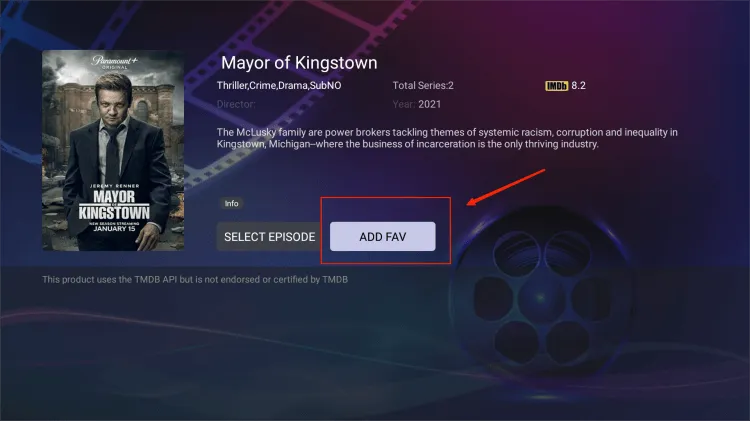
- On the detail page of the movie or TV series, click on ADD FAV.
- On the detail page of the movie or TV series, click on ADD FAV.
- View Your Favorites:
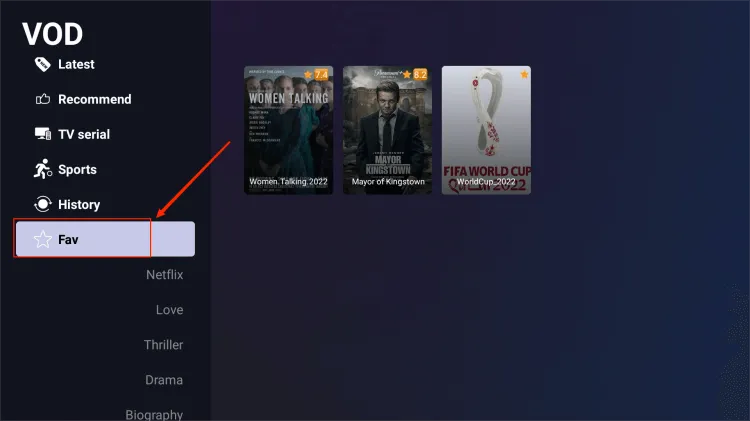
- Go to the Fav section from the left menu for the recently added favorite movies or TV series.
- Go to the Fav section from the left menu for the recently added favorite movies or TV series.